



Which router do you get with EE broadband?
When you sign up to EE broadband, you'll receive one of three routers, depending on your plan:
- Smart Hub 6 Plus (Wi-Fi 6)
- Smart Hub 7 Plus (Wi-Fi 7)
- Smart Hub 7 Pro (Wi-Fi 7)
All three are well-designed devices built for reliable, high-speed connectivity.
| EE Router | Wi-Fi Standard | Included with | Upgrade option |
|---|---|---|---|
| Smart Hub 6 Plus |
Wi-Fi 6 (802.11ax) |
Full Fibre, Part Fibre, Standard |
Standard inclusion |
|
Smart Hub 7 Plus |
Wi-Fi 7 (802.11be) |
Full Fibre packages |
Included with select plans |
|
Smart Hub 7 Pro |
Wi-Fi 7 (802.11be) |
Full Fibre packages | Paid upgrade available |
You can also opt for the Smart Hub 7 Pro as a paid upgrade. As EE, BT and Plusnet are all part of the same group, EE routers are compatible with all three providers.

- Speed: 900Mb avg. speed
- Set-up cost: £0
- Contract: 24 months
Rewards:
£25.99 per month
£29.99 from 31st March 2027
£33.99 from 31st March 2028

- Speed: 74Mb avg. speed
- Set-up cost: £0
- Contract: 24 months
£24.99 per month
£28.99 from 31st March 2027
£32.99 from 31st March 2028

- Speed: 66Mb avg. speed
- Set-up cost: £0
- Contract: 24 months
Rewards:
£22.99 per month
£26.99 from 31st March 2027
£30.99 from 31st March 2028
Are EE routers any good?
All three current Smart Hubs are designed for reliability, strong signal coverage and easy setup.
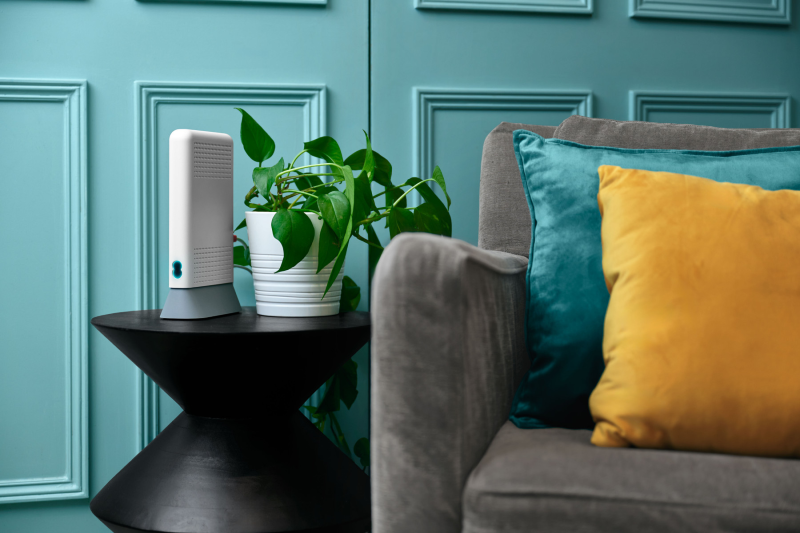
The Smart Hub 6 Plus is a dual-band Wi-Fi 6 device that works with all standard broadband connections. It's the most versatile option in the range and handles everyday household use comfortably.
The Smart Hub 7 Plus steps things up with Wi-Fi 7 and improved performance across multiple connected devices. It remains a more compact, accessible upgrade for Full Fibre customers.
The Smart Hub 7 Pro is EE's flagship router. Key features include:
- Tri-band Wi-Fi 7
- A Qualcomm quad-core processor
- NFC contactless pairing
- Multi-gigabit Ethernet ports
This makes it a good choice for larger homes or households with heavy network demands.
All three work with EE's Smart W-iFi extenders to extend coverage throughout your home.
| What we like | What could be better |
|---|---|
|
|
Genie Verdict: EE's current Smart Hub range is among the most capable ISP-supplied hardware on the market right now. It has good options to suit most households.
EE Smart Hub Plus (Wi-Fi 6)
The Smart Hub 6 Plus is EE's most flexible router, supporting Full Fibre, Part Fibre and standard broadband connections. It's a dual-band Wi-Fi 6 device that balances range and speed for busy homes.
Key features:
- Dual-band Wi-Fi 6 (2.4 GHz & 5 GHz)
- 4 x 1 GigE LAN ports + 2.5 GigE WAN (select models)
- RJ-11 port for xDSL on select models
- Advanced parental controls and security via the EE app
- Compatible with the Wi-Fi Extender 6 Plus
Best for: Households on part fibre or standard broadband, everyday browsing, streaming and video calls
Not ideal for: Large homes or heavy multi-device use

EE Smart Hub 7 Plus (Wi-Fi 7)
The Smart Hub 7 Plus is a dual-band Wi-Fi 7 router designed for Full Fibre connections.
It delivers meaningfully faster speeds and better handling of multiple devices than its Wi-Fi 6 predecessor.
Key Features:
- Dual-band Wi-Fi 7 (2.4 GHz & 5 GHz)
- 1 x 2.5 Gbps LAN + 3 x 1 Gbps LAN + 2.5 Gbps WAN
- Advanced parental controls and security via the EE app
- Digital Home Phone support (DECT/FXS)
- Compatible with the Wi-Fi Extender 7 Plus
Best for: Full fibre customers wanting a Wi-Fi 7 upgrade without the Pro price tag
Upgrade cost: Homes needing tri-band coverage or 6 GHz wireless
EE Smart Hub Pro (Wi-Fi 7)
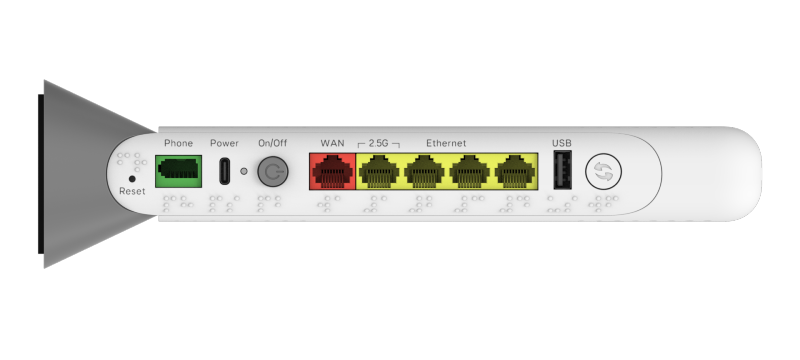
EE's current flagship router is the Smart Hub 7 Pro. It’s a tri-band Wi-Fi 7 device built for ultra-fast Full Fibre connections and demanding multi-device households.
Highlights:
- Tri-band Wi-Fi 7 (2.4 GHz, 5 GHz & 6 GHz)
- 4 x 2.5 GigE LAN + 1 x 2.5 GigE WAN
- NFC contactless guest Wi-Fi pairing
- Advanced parental controls and Web Protect security via the EE app
- Digital Home Phone support (DECT/FXS)
- Compatible with the Smart Wi-Fi Extender 7 Pro
Best for: Large homes, multi-device families, 4K/8K streaming and future-proofing
Upgrade cost: Available as a paid upgrade for existing customers
-
How do I change my EE router frequency?
EE's current Smart Hubs handle band selection automatically. By default, your hub uses band steering to connect each device to whichever frequency (2.4 GHz, 5 GHz, or 6 GHz). This gives you the best performance at that moment.
The most common reason you might want to change frequency is to connect an older device that only supports 2.4 GHz. This could be a doorbell, thermostat, or security camera.
For this, EE's Compatible WiFi feature creates a separate 2.4 GHz network that older devices can connect to. It may be slightly slower than your main Wi-Fi, but it keeps those devices connected without affecting everything else.
You can turn on Compatible WiFi in the EE app. Open the app, select Broadband, pair it to your hub if you haven't already, then toggle the switch to turn on Compatible WiFi.
Alternatively, you can enable it through the Hub Manager by going to 'Advanced > Wireless'. Then by enabling the Compatible WiFi section.
Legacy routers (Bright Box, earlier hubs)
Existing customers who've been with EE for a while may have older devices, such as:
- Smart Hub (Wi-Fi 5, model SH20A)
- Smart Router
- BT Smart Hub 2
- Bright Box
All were decent devices in their time, comparable with other ISP hardware, but they're showing their age now.
The Smart Hub, for instance, lacks multiple SSID support and tops out at Wi-Fi 5 speeds, which limits performance on fibre connections.
Can you use your own router with EE?
Yes – you can use your own router, but there are a few conditions.
- Your router must support PPPoE (Point-to-Point Protocol over Ethernet)
- For Full Fibre (FTTP), you’ll need a router with an Ethernet WAN port
- EE only offers support for its own equipment
Genie Tips:
- If you use EE’s Digital Home Phone service, keep the EE-supplied router connected. You should do this even if you add your own mesh Wi-Fi system.
- Some users report difficulty when replacing the EE hub entirely. For example, the lack of modem mode on the EE router makes it harder to bridge the EE hub.
Read our guide on how to buy your own Wi-Fi router.
Setting up your EE router
Getting started takes just a few minutes:
- Plug your router into the wall socket using the grey port
- Connect the power cable and switch on
- Wait for a steady light blue indicator – that means it’s ready
- Use the WPS button or EE app to connect devices
Your Wi-Fi name and password are printed on a sticker on the back.
Maximise Wi-Fi coverage with EE Smart WiFi
If parts of your home struggle for signal, EE’s Smart WiFi extenders can help. These are available as an add-on. They use mesh technology to extend coverage and reduce dead zones.
Both the Smart Hub Plus and Smart Hub Pro provide reliable wireless coverage, but there are some things you can do to improve signal. This includes:
- Placing your router centrally and off the floor
- Avoid housing it behind TVs or metal objects
For more tips, visit our guide to improving Wi-Fi speed.
Upgrade your EE router
If you're seeing slower speeds or patchy coverage, an upgrade may well solve it.
It's worth considering if:
- You've switched to a faster plan your current router can't handle
- You've added lots of smart home devices
- Your Wi-Fi no longer covers every room
- You're still using older models like the Bright Box or original Smart Hub
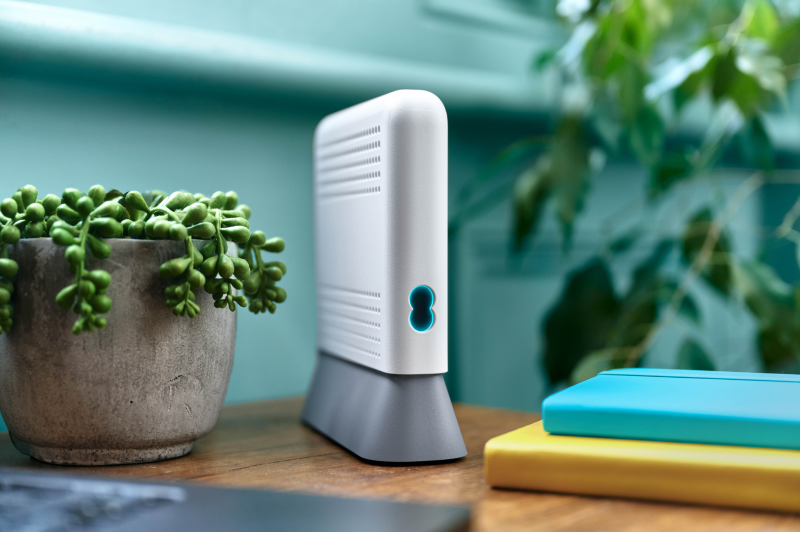
EE offers existing customers the chance to upgrade to the Smart Hub 7 Pro. Check the EE website for current upgrade pricing.
Read more: 'How to improve broadband speed'
Common EE router FAQs
-
Which router does EE provide with its broadband?
EE currently supplies three Smart Hub models depending on your plan:
The Smart Hub 6 Plus (Wi-Fi 6) works across Full Fibre, Part Fibre and standard broadband
The Smart Hub 7 Plus and Smart Hub 7 Pro are both Wi-Fi 7 devices for Full Fibre connections. The Pro offers tri-band wireless and more advanced hardware.
-
Can you use your own router with EE broadband?
Yes, you can use your own router with EE broadband as long as it supports PPPoE and, for Full Fibre, has an Ethernet WAN port.
There's a dedicated page on the EE website that explains the requirements and configuration options.
-
Is the EE Smart Hub Pro worth it?
Yes. Especially if you're on Full Fibre. It’s also great if you use many devices at once, or want the fastest connection across a larger home.
The tri-band Wi-Fi 7 setup, 6 GHz band support and multi-gigabit Ethernet ports makes it future-proof hardware.
-
What if I still have an older EE router?
Legacy models like the Bright Box and original Smart Hub still work. However, the lack modern Wi-Fi standards and features like advanced parental controls and multiple SSIDs. When you renew your contract, you may receive the latest hub.
You may also request a replacement if your existing router develops a fault, though replacements are at EE's discretion.
-
How do I know which model router I have from EE?
Check the label on the back of your hub. It will list the model name (Smart Hub 7 Pro, Smart Hub 7 Plus, Smart Hub 6 Plus, or Smart Hub) and the model number.
-
Do EE routers support mesh Wi-Fi or extenders?
Yes. Each Smart Hub has a compatible EE extender:
- The Smart Hub 7 Pro pairs with the Smart Wi-Fi Extender 7 Pro
- The Smart Hub 7 Plus with the Wi-Fi Extender 7 Plus
- The Smart Hub 6 Plus with the Wi-Fi Extender 6 Plus
Most third-party mesh systems are also compatible.
-
Why is my EE router flashing orange?
A flashing orange light means your hub is connecting to broadband. Give it at least three minutes, and it should turn solid aqua when it's ready.
If it keeps flashing, check your broadband cables are properly seated at both ends. For Full Fibre, make sure the cable is secure in the WAN port on the hub and in Port 1 on the Openreach modem.
A solid orange light signals your hub isn't connected to the internet. Turn it off, wait two minutes, then switch it back on. If you're new to EE or have recently moved, check your activation date.
-
Why is my EE router flashing green?
A flashing or solid green light means your hub is starting up. Wait three minutes and it should turn solid aqua, which means it's ready.
If it stays green, turn the hub off, wait two minutes and switch it back on. Still green? Hold the reset button with a pin for around 20 seconds, release and let the hub restart. If that doesn't clear it, contact EE to run a line test.
Compare EE routers vs other broadband providers
Curious how EE’s hubs compare? Check our other router round-ups to see the latest hardware from other ISPs.
- Speed: 900Mb avg. speed
- Set-up cost: £0
- Contract: 24 months
Rewards:
£25.99 per month
£29.99 from 31st March 2027
£33.99 from 31st March 2028
- Speed: 1.6Gb avg. speed
- Set-up cost: £0
- Contract: 24 months
Rewards:
£33.99 per month
£37.99 from 31st March 2027
£41.99 from 31st March 2028
- Speed: 500Mb avg. speed
- Set-up cost: £0
- Contract: 24 months
£24.99 per month
£28.99 from 31st March 2027
£32.99 from 31st March 2028
Ready to check EE broadband in your area?
Use our postcode checker to see:
- Which EE plans are available at your address
- Whether you can get full fibre broadband coverage
- The latest EE deals and reward offers